





How to schedule automatic cleaning scans
One of the best ways to keep your PC clean is by running regular cleaning scans. If you want to keep your computer free from all traces of your online and offline activities you may even want to run daily cleaning scans. OneSafe PC Cleaner makes it easy to setup automatic cleaning scans to best suit the way you use your computer.
Setup automatic cleaning scans
Click on the Settings tab.
Select Automatic Scan and System Monitoring
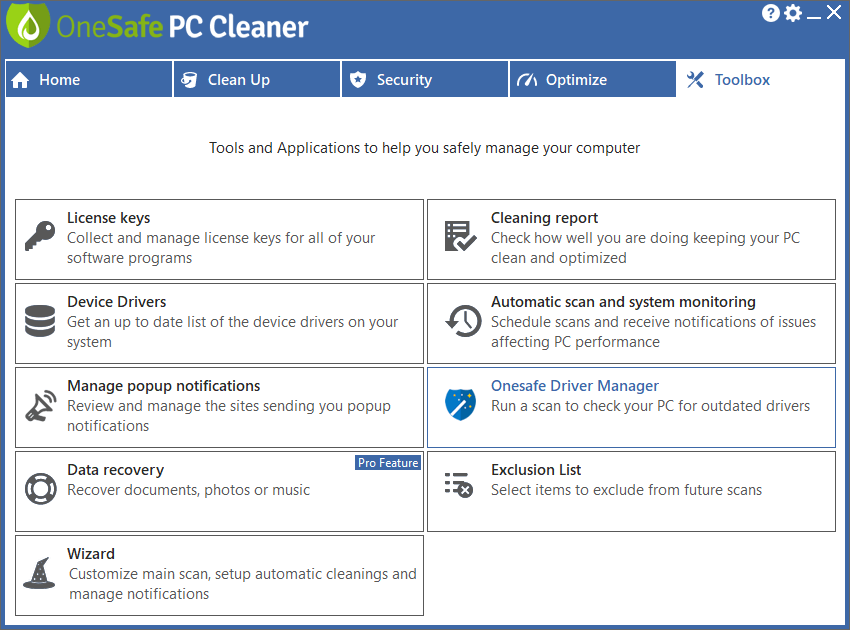
Under Schedule Scans make sure “Enable scheduled scans” is checked.
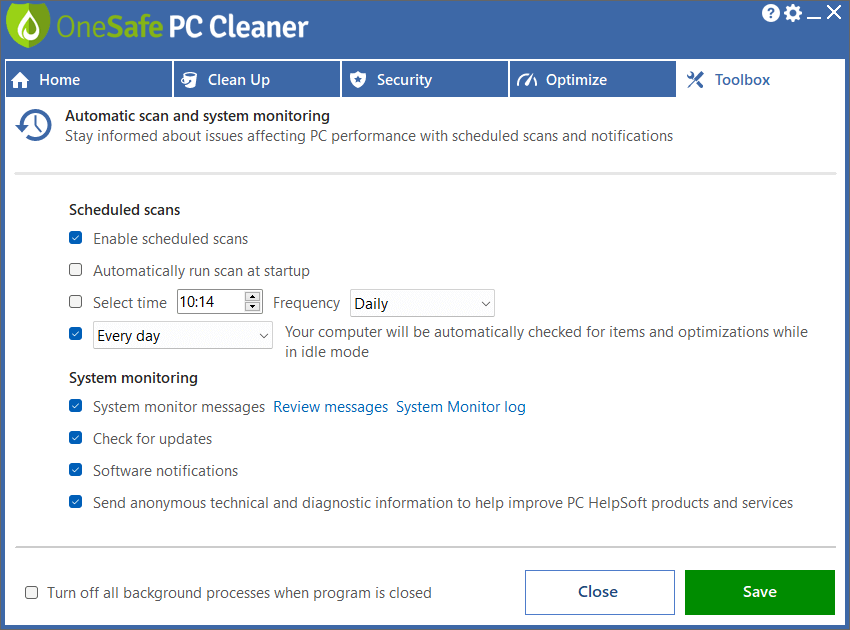
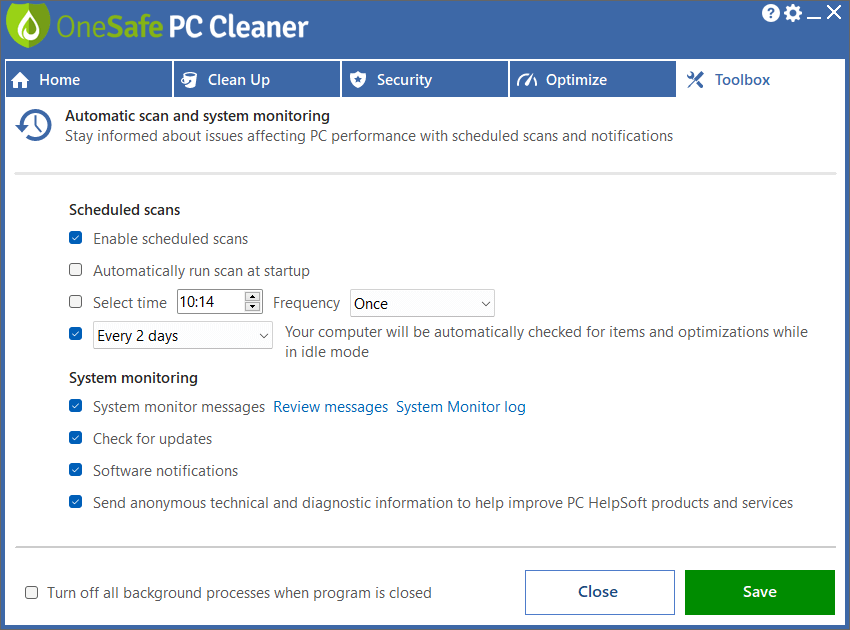
Use the other checkboxes to select when you want the scans to run.
You may choose to automatically scan at startup or select a time and a frequency that works for you. If you prefer you can select to have the cleaning scan run when the PC is not idle or not in use.
Optimize your PC performances
A clean PC is the basis for having good use of your machine. OneSafe PC Cleaner is a complete software that helps you clean your computer deeply. It scans your entire hard drive in minutes and...
Read MoreOptimal performance : updating your drivers
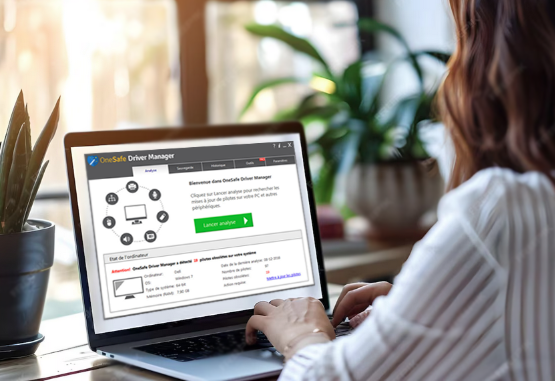
Owning quality computer equipment is essential for good use of your PC. That’s why updating your drivers is important, and some softwares can help you do so very quickly. OneSafe Driver Manager automatically detects outdated drivers etc ...
Read More Is your PC slow?
 Speed Up Your PC


 3 tips to increase your PC’s speed
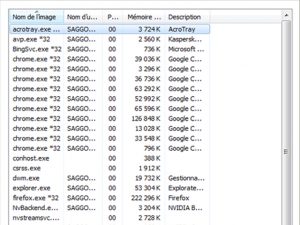 How to properly use Windows Task Manager ?
 How to troubleshoot a slow internet connection?
 What is the Blue Screen of Death?
 How to clean your PC or laptop screen?
 How to defrag your hard drive?
 How to protect your confidential information online?
 What is the Windows Registry?